PlugboxLinux Minecraft: A Helpful Guide for Linux Gamers
Minecraft is popular among players who enjoy building worlds, exploring different environments, and creating their own gaming experiences. Linux users can also enjoy Minecraft, although setting it up may require some additional configuration. This is why PlugboxLinux Minecraft has become a search term for people interested in Linux gaming, Minecraft installation, and lightweight computing.
Before getting started, it is important to understand what PlugboxLinux actually refers to. The current PlugboxLinux website publishes technology, gaming, and Minecraft-related content. It should not automatically be confused with the older PlugBox Linux project associated with ARM-based plug computers.
This article explains the connection between PlugboxLinux and Minecraft, how Linux users can get started, and what to consider when improving gameplay or hosting a server.
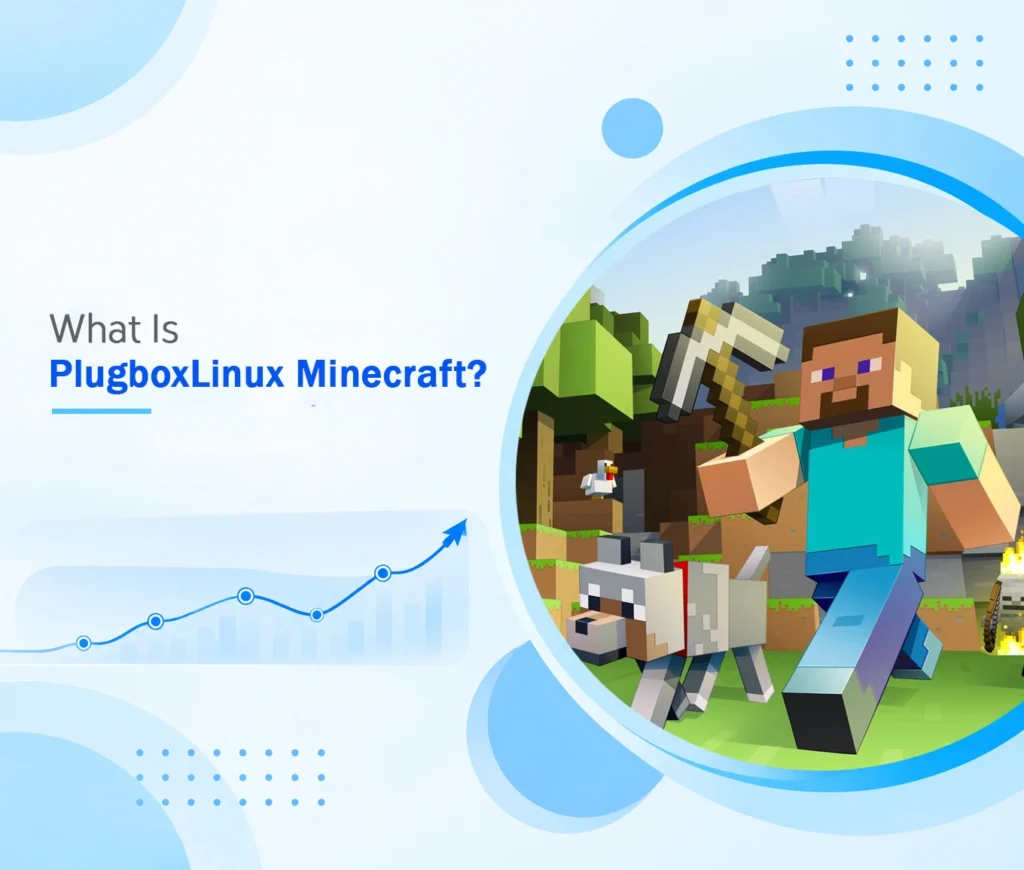
What Is PlugboxLinux Minecraft?
PlugboxLinux Minecraft is a search phrase associated with Minecraft-related information and Linux gaming discussions.
The current PlugboxLinux website includes dedicated sections for gaming, new technology, and Minecraft. Its Minecraft content covers subjects such as building guides, modding, server administration, and survival tips.
There is also a historical connection between the PlugBox Linux name and lightweight Arch-based systems designed for small ARM computers. However, the current content website should not be treated as proof that a supported Minecraft operating system is available for download.
Most modern discussions about Minecraft on Linux are really about running Minecraft Java Edition on a compatible Linux distribution.
Can You Play Minecraft on Linux?
Yes. Minecraft Java Edition supports Linux, provided your computer meets the game’s requirements and has compatible graphics hardware and software.
Linux offers several advantages for users who like customizing their computers:
- Greater control over installed applications.
- Access to different desktop environments.
- Flexible software management.
- Support for Java-based applications.
- Options for running dedicated game servers.
However, Linux does not automatically make Minecraft faster. Performance depends on your processor, graphics card, memory, drivers, storage, and game settings.
You can find supported Linux downloads and installation information on the official Minecraft download page.
How to Get Started with Minecraft on Linux
If you want to play Minecraft on a Linux computer, follow a few basic steps before installing the game.
1. Check Your Linux System
First, identify which Linux distribution and hardware architecture your computer uses.
This matters because software packages are not always compatible with every distribution or processor.
Check the following:
- Linux distribution and version.
- Processor architecture.
- Available RAM.
- Graphics hardware.
- Available storage.
- Graphics driver compatibility.
If you are using an older ARM-based device, check its hardware limitations carefully. Modern Minecraft requirements may exceed what older plug computers can support.
2. Download the Official Minecraft Launcher
The safest starting point is the official Minecraft download page.
Choose the Linux option that matches your distribution. Depending on your system, available installation packages and instructions may differ.
Avoid downloading modified launchers from unfamiliar websites, particularly those asking for your Microsoft account credentials.
3. Check Java Compatibility
Minecraft Java Edition uses Java to run the game. The required Java version depends on the Minecraft release.
The official launcher normally manages its required Java runtime, so most players do not need to install Java separately.
If you plan to run a dedicated server or use a third-party launcher, you may need to install a compatible Java version yourself.
The Arch Linux website and its package documentation can help Arch-based users understand software installation and package management.
4. Launch the Game
After installation:
- Open the Minecraft Launcher.
- Sign in with the Microsoft account associated with your game.
- Select the Minecraft Java Edition profile.
- Choose the desired game version.
- Allow the launcher to download the required files.
- Start the game.
If Minecraft fails to launch, check the error message before changing Java settings or reinstalling system packages.
How to Improve Minecraft Performance on Linux
Minecraft performance can vary significantly between computers. A few sensible adjustments can help reduce unnecessary workload.
Reduce Render Distance
Render distance controls how many surrounding chunks the game displays.
A higher setting can make the world feel more expansive, but it also increases the work required from your processor and graphics hardware.
If you experience lag, try lowering render distance and testing the game again.
Adjust Simulation Distance
Simulation distance affects how far away certain game activities continue to run.
Reducing this setting can help on computers with limited processing power, especially in worlds containing many active mobs, villagers, or redstone systems.
Keep Graphics Drivers Updated
Graphics drivers help the operating system communicate with your GPU.
Using compatible, maintained drivers can improve stability and resolve rendering problems. Check your distribution’s documentation and your graphics hardware manufacturer’s recommendations before making driver changes.
Use Performance Mods Carefully
Some Minecraft Java Edition mods are designed to improve rendering or reduce performance overhead.
For example, Sodium is a rendering optimization mod for supported Minecraft versions.
Before installing a mod, check its supported game version, dependencies, and compatibility with other modifications. Back up important worlds before changing your installation.
Close Unnecessary Applications
Browsers, video editors, and other demanding applications can compete with Minecraft for memory and processor resources.
Closing applications you do not need may improve gameplay, particularly on computers with limited RAM.
Can You Host a Minecraft Server on Linux?
Yes. A compatible Linux computer can host a Minecraft Java Edition server.
Server hosting is different from playing the game through the launcher. A server runs in the background and allows other players to connect to a shared world.
The basic requirements include:
- A compatible 64-bit system.
- A suitable Java runtime.
- Enough memory for the expected player count.
- Reliable storage.
- A stable internet connection.
- Appropriate firewall and network configuration.
You can obtain the official server software from the Minecraft Java Edition server download page.
Important Server Setup Considerations
Before allowing other people to connect, consider security and maintenance.
Use strong administrative credentials, keep server software updated, and make regular backups of your world files.
Do not open network ports unnecessarily. If you need remote access, understand your firewall and router settings before changing them.
For a small private server, a modern computer with adequate resources may be sufficient. Larger communities and heavily modified servers need more careful planning.
Common PlugboxLinux Minecraft Problems
Linux gaming can involve a few technical issues, especially when software versions or hardware components are incompatible.
| Problem | Possible reason | What to check |
| Minecraft will not launch | Java or launcher issue | Check the game version and launcher logs |
| Low FPS | Graphics or resource limitations | Reduce render distance and update drivers |
| Black screen | Graphics compatibility | Review GPU drivers and launcher output |
| Mods fail to load | Version mismatch | Check mod and loader compatibility |
| Server will not start | Java or configuration issue | Review server logs and Java requirements |
| Multiplayer connection fails | Network or firewall settings | Check server address and connection rules |
Minecraft Crashes After Installing Mods
A newly installed mod may be incompatible with the current game version or another installed modification.
To troubleshoot:
- Close Minecraft.
- Back up your existing world.
- Temporarily remove recently added mods.
- Launch the game without those modifications.
- Add compatible mods back one at a time.
This approach helps identify which modification is causing the problem.
Is PlugboxLinux a Good Choice for Minecraft Beginners?
The answer depends on what you mean by PlugboxLinux.
If you are referring to the current PlugboxLinux content website, it can be a place to find gaming and Minecraft-related articles.
If you mean the historical PlugBox Linux system, it is not necessarily a practical choice for modern Minecraft. Its original focus on small ARM plug computers does not mean that those older devices can meet today’s game requirements.
Beginners who want to play Minecraft should generally start with a currently maintained Linux distribution that offers good documentation, compatible graphics drivers, and straightforward software installation.
The best setup is the one that matches your hardware and technical experience, rather than simply choosing an operating system because it is described as lightweight.
Linux Gaming and the Future of Minecraft
Linux gaming continues to develop through improvements in graphics drivers, compatibility tools, open-source applications, and community-supported modifications.
Minecraft benefits from this wider ecosystem because players can customize their installations, experiment with mods, and host their own servers.
Gaming communities also discuss different hardware setups, accessories, and ways to improve the overall experience. For example, CoolKingZone.com is another gaming-related topic that connects with the wider interest in gaming technology and digital entertainment.
As Linux software continues to evolve, players should prioritize maintained distributions, trusted downloads, and compatibility information when choosing their gaming setup.
Conclusion
PlugboxLinux Minecraft is best understood as a search term connecting the PlugboxLinux name with Minecraft and Linux gaming information, rather than the name of an official Minecraft edition.
Minecraft Java Edition can run on compatible Linux systems, and users can customize their setups through graphics settings, supported mods, and server software.
Before installing anything, check your hardware, Linux distribution, Java requirements, and software sources. Using official downloads and maintaining regular backups can help create a more reliable gaming experience.
Frequently Asked Questions
1. What is PlugboxLinux Minecraft?
PlugboxLinux Minecraft is a term associated with Minecraft guides and Linux gaming discussions. It does not refer to a separate official Minecraft edition.
2. Can I play Minecraft on a Linux computer?
Yes. Minecraft Java Edition supports compatible Linux systems. Your hardware, graphics drivers, operating system, and game version determine whether it will run properly.
3. Is PlugboxLinux an official Minecraft operating system?
No official Minecraft operating system called PlugboxLinux Minecraft exists. The current PlugboxLinux website publishes gaming and technology content, while the older PlugBox Linux name has historical connections to lightweight ARM-based Linux systems.
4. Can I install Minecraft mods on Linux?
Yes. Minecraft Java Edition supports compatible mods and mod loaders. Always check the Minecraft version, dependencies, and mod requirements before installation.
5. Can Linux host a Minecraft multiplayer server?
Yes. A compatible Linux system can run the official Minecraft Java Edition server software. Performance depends on available hardware, memory, network quality, and server configuration.