Grok Content Moderated: Helpful Fixes and Important Reasons
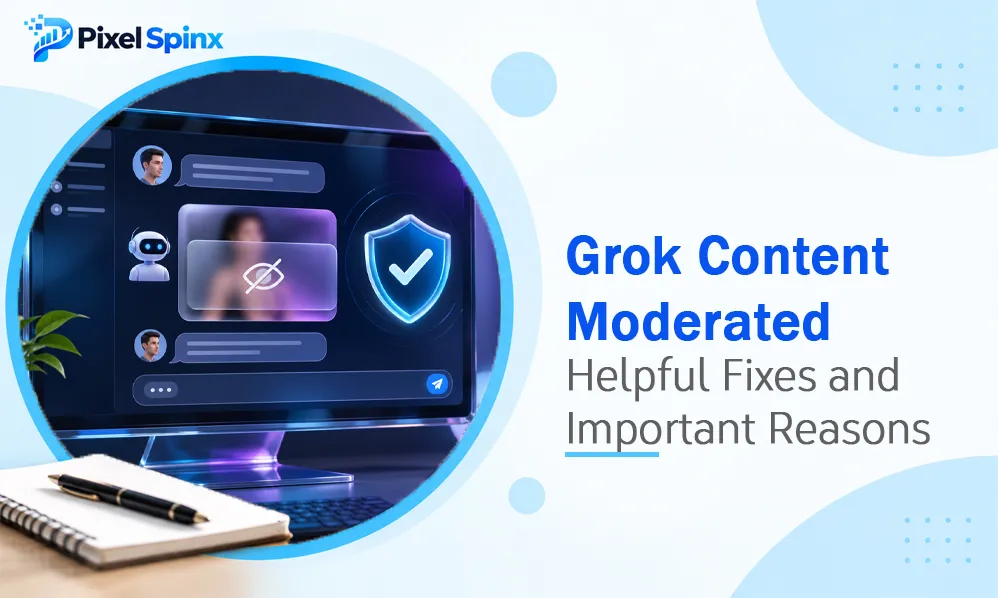
Grok is an AI assistant that can answer questions, generate text, create images, and help users explore different ideas. However, users sometimes encounter a message saying “Content Moderated” while generating an image, editing a picture, or submitting a prompt. This can be confusing, especially when the request seems harmless.
The Grok content moderated message usually indicates that the platform’s safety systems have restricted a particular request or output. Understanding why this happens can help users write clearer prompts, avoid unnecessary errors, and use Grok responsibly.
In this article, we explain common reasons behind moderation messages, practical ways to handle them, and important information about Grok’s content policies.
What Does Grok Content Moderated Mean?
Grok content moderated is a message users may see when the AI system prevents a requested response or generated result from being displayed.
AI platforms use moderation systems to identify requests that may violate their content rules. These systems can review prompts and generated content to determine whether a request is allowed.
For example, Grok may restrict requests involving:
- Sexual content involving minors.
- Non-consensual intimate images.
- Harmful or abusive activities.
- Certain graphic or violent material.
- Attempts to violate privacy or impersonate real people.
The exact restrictions depend on the feature being used, the applicable policies, and the user’s location.
According to the official Grok information page, Grok is an AI assistant available through X and its own services.
Why Does Grok Show the Content Moderated Message?
There are several possible reasons why Grok may block a prompt or image request.
1. Sensitive Words in the Prompt
Some words or phrases may cause a request to be flagged by automated safety systems. This can happen when a prompt contains language that appears to describe restricted content.
Even when the intended request is harmless, unclear wording may make its purpose difficult to understand.
2. Requests Involving Real People
Grok has restrictions concerning images of identifiable people. Requests to alter a real person’s appearance in an intimate or sexual context without consent are prohibited.
These rules are intended to protect people’s privacy, dignity, and personal rights.
3. Restricted Image Generation Requests
Grok Imagine includes image-generation and editing capabilities. However, not every image request is permitted.
Requests involving prohibited sexual content, exploitation, or other harmful material may be blocked before an image is delivered.
4. Safety Policy Restrictions
Grok follows an Acceptable Use Policy that explains which activities are permitted and which are prohibited.
The official xAI Acceptable Use Policy covers harmful activities, privacy violations, exploitation, and attempts to bypass protective systems.
5. Changes to Moderation Rules
AI platforms regularly update their safety systems. A request that previously produced a result may be restricted after a policy or moderation update.
For this reason, users should check current platform rules rather than assuming that older examples still apply.
How to Fix Harmless Grok Content Moderated Errors
If Grok blocks a harmless request, there are several reasonable steps you can try without attempting to bypass its safety protections.
1. Make Your Prompt Clearer
Use simple language to explain exactly what you want. Avoid unnecessary expressions that could make a normal request sound ambiguous.
For example, instead of writing a vague image-editing instruction, describe the intended visual change clearly, such as changing the background color or improving the lighting.
2. Remove Unnecessary Details
A prompt does not need to contain multiple unrelated instructions. Keep it focused on one clear task.
Shorter prompts can make your intended result easier to understand.
3. Check the Uploaded Image
If you are editing an image, review the uploaded material before submitting the request. Make sure you have permission to use the image and that the requested edit follows the platform’s policies.
4. Try a Different Allowed Request
If a particular request is restricted, consider changing the creative direction to something that is clearly permitted.
For example, you can request a fictional character, a new background, a different color scheme, or an original illustration instead of modifying an identifiable person’s image in a prohibited way.
5. Check for Temporary Technical Problems
Sometimes an error may be related to a temporary service issue rather than the wording of a prompt.
You can try refreshing the page, reopening the application, checking your internet connection, or waiting before submitting the request again.
If the problem continues, use the platform’s support or reporting options.
Is Grok Content Moderation the Same for Every User?
Not necessarily. Moderation experiences can vary depending on the feature, location, account settings, and applicable legal requirements.
For example, regulators have engaged with X and xAI about protections against harmful AI-generated material.
The UK’s Ofcom update on Grok and X discusses restrictions introduced following concerns about harmful image generation and the protection of children.
This shows why moderation rules should not be treated as identical across every country or product feature.
What Should You Do If Grok Blocks an Innocent Image?
An innocent image can sometimes be affected by an incorrect or overly cautious moderation decision.
If you believe your request follows the rules, consider these steps:
- Review the prompt for unclear or unnecessary wording.
- Check whether the uploaded image includes sensitive material.
- Confirm that the requested edit does not violate privacy or consent rules.
- Submit a simpler version of the same allowed request.
- Report the issue if the problem continues.
For serious concerns involving non-consensual intimate content, xAI provides a dedicated reporting process for non-consensual intimate content.
Do not repeatedly submit prohibited requests or try to defeat the moderation system.
How to Use Grok More Responsibly
Grok can be useful for creative work, research, writing, and everyday assistance. A few good practices can help make the experience safer and more productive.
- Write clear and specific prompts.
- Avoid uploading private images without permission.
- Do not request harmful or illegal material.
- Respect the privacy and identity of other people.
- Review generated results before sharing them.
- Avoid entering passwords or sensitive personal information into AI conversations.
Users should also remember that AI-generated information may contain mistakes. Important facts should be checked against reliable sources.
If you also work with design or publishing applications, understanding how software can be protected can help you learn more about keeping software, files, and digital projects secure.
Grok and Other AI Platforms
Grok is one of several AI tools available for content creation and everyday assistance. Different platforms use different moderation systems, features, and safety policies.
For example, readers interested in AI chatbot restrictions can also learn about whether Character AI still has a filter.
The best approach is to understand each platform’s rules before using its creative features.
Conclusion
The Grok content moderated message appears when a request or generated result is restricted by the platform’s safety systems. It may be triggered by sensitive wording, prohibited image requests, privacy concerns, or changes to moderation policies.
If a harmless request is blocked, try making the prompt clearer, reviewing the uploaded image, and submitting a simpler allowed request. Always follow xAI’s current policies instead of attempting to bypass safety protections.
Understanding how moderation works can help users have a smoother experience while using Grok for creative and everyday tasks.
Frequently Asked Questions
1. What does content moderated mean on Grok?
It means Grok’s moderation system has restricted a prompt or generated result because it may fall outside the platform’s content rules.
2. Why does Grok moderate harmless prompts?
Automated moderation systems can sometimes interpret unclear wording or image details incorrectly. A clearer and more specific prompt may help when the original request is allowed.
3. Can I turn off content moderation on Grok?
Users should not assume that moderation can be disabled. Grok applies safety rules that users must follow.
4. Does Grok moderate image generation?
Yes. Grok’s image-generation and editing features are subject to safety restrictions, including rules about privacy, consent, and prohibited content.
5. Does a paid Grok subscription remove moderation?
No. A paid subscription should not be treated as permission to generate prohibited content or bypass safety rules.
6. What should I do if Grok blocks an allowed request?
Review your prompt, check the uploaded image, try a clearer version, and contact support or report the issue if the problem continues.